
Managing 20+ Agents Controlling a Single Device (Laptop, Phone, VR Helmet...)
Run 20+ AI agents and they fight over your Mac, phone and headset. One lock per device, a banner showing who's driving, and a Pause button that really stops it.


I run 10 to 20+ Claude Code agents in parallel, and when they can’t do something programmatically, they fall back to using the GUI: click through apps on my laptop, downloading and setting up an app on my phone (or tablet or VR headset).
Past a handful of agents, they start grabbing the same device at the same time. One opens an app while another is halfway through typing a password. Keystrokes land in the wrong window. And when I pick up my phone, I can’t tell if it’s mine or if some agent is in the middle of something on it.
Here’s how to let a single agent control each device at once, show which agent is driving it, and pause/ interact with the agent in control:
🤖 Want an agent to just build this for you? Copy the prompt and paste it into your AI agent.
⚙️ Requirements
- 🤖 Several AI agents running at once
Claude Code, or any agent harness with hooks that run before each tool call. With one agent you don't need this. - 🍎 A Mac (macOS 14+) for the desktop panel
peekaboo and the panel are macOS-only - 📱 Optional: Android phones, tablets or a Quest over adb
They share the same lock. Use Tailscale to reach them from other machines. - 🔐 Accessibility + Screen Recording permission for your terminal, granted once
Why agents fight over devices
An agent driving a GUI assumes it owns the screen. It takes a screenshot, decides where to click, clicks. If another agent moved something in between, the click lands on whatever is there now.
With one agent that never happens. With many, it happens constantly, and the failures are ugly:
- Two agents on one phone. One was mid-task holding the phone; the other opened an app straight over it and replaced its on-screen banner with its own.
- An agent typing a login password on my Mac. The window it meant wasn’t focused, so the keys went into a game that was.
- An agent that crashed while holding a device. Every other agent waited on a lock nobody was ever going to release.
None of these are model problems. A smarter model makes the same mistakes, because it can’t see the other agents. The fix is plumbing: a lock per device, a visible claim, and a stop button enforced outside the agent.
Hands: peekaboo on the Mac, adb on the phone
For the Mac, I use peekaboo instead of Claude’s built-in computer use. Computer use treats every browser as read-only (it can look at Chrome, it can’t click in it) and asks for a per-app permission grant in the middle of a task. Peekaboo drives macOS accessibility directly, so a browser is just another app, and it needs Accessibility and Screen Recording granted once.
brew install \
  openclaw/tap/peekaboo
# element ids
peekaboo see --app Safari --json
peekaboo click "Sign In"
peekaboo type "hello"
peekaboo image --app Safari \
  --path s.png
For Android phones, tablets and a Quest headset, plain adb is the hands: adb shell input tap, uiautomator dump for the element tree, screencap for screenshots (on the Quest you need its own capture path, since the VR compositor bypasses the Android screen).
One lock per device
Every device gets a named lock: mac-screen, phone, tablet, quest. An agent takes it before it drives, does its whole sequence, and releases it. The lock is a directory with a small JSON file in it, created atomically, so two agents can’t both win.
node agent-lock.mjs acquire phone \
  --device R5CW1234567 \
  --ttl 300 --wait 600 \
  --desc "Installing Kiwi browser"
# ... drive the phone ...
node agent-lock.mjs release phone \
  --device R5CW1234567
A second agent asking for the same device gets told who has it:
$ node agent-lock.mjs \
    acquire phone --wait 0 \
    --desc "Reading WhatsApp"
timed out after 0s; held by
[email protected]
(300s left)
The rules that make it hold up with lots of agents:
- Store the lock on the device itself. With
--device, the lock lives in/data/local/tmpon the phone, written over adb. My agents run on more than one machine, and they all reach the same phone over Tailscale; a lock on my laptop’s disk would mean nothing to an agent on the server. - Give it a TTL. A lock lapses unless the holder renews it, so a crashed agent can’t wedge a device forever.
- Never let anyone take a live lock.
stealonly adopts a lock whose holder stopped renewing. An agent that is actually working keeps the device until it’s done. - Queue the waiters.
--wait 600puts an agent in line instead of failing. Waiters are served in arrival order, and one that stops heartbeating drops out. Agents should wait in line, not ask me whether they should wait. - Lock driving, not looking. Screenshots and reading the element tree stay free. Only taps, typing and app launches need the lock.
The lock only works if agents can’t skip it. On the Mac that’s a Claude Code hook (below); on the phone, the driving commands live in one CLI that checks the lock before every tap, and raw adb shell input is blocked by a hook too. That second rule exists because of the banner incident above: the agent that clobbered it had used raw adb, which never asked the lock.
Always show who is driving
Taking a lock puts a banner on that device saying an agent is driving it, which agent, and what it’s doing right now. The agent updates the line as it goes (“Opening Settings”, “Typing the Wi-Fi password”). On the phone it’s a small Android overlay app; on the Mac it’s a floating panel in the top-right corner.
The banner hangs off the lock, not off the agent remembering to show it. If the phone is unlocked and the banner doesn’t actually appear, the agent’s claim is refused and the lock released. An indicator an agent can forget is missing exactly when you need it.
In the terminal. While an agent holds a device, its terminal tab gets that device’s emoji: 💻 Mac, 📱 phone, 📲 tablet, 🥽 headset, 👓 glasses. One glance at the tab bar shows which of twenty agents has what, and the badge disappears when the lock is released.
The Mac panel

The Mac is the device I’m sitting at, so it gets more ceremony. Before the agent touches anything, the panel asks:
- A 15 second countdown with the agent’s goal in plain words and an I’m busy button. Ignore it and the agent goes ahead; click it and the agent is refused.
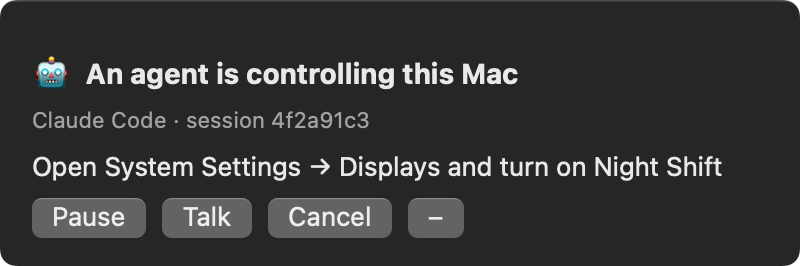
- Then a banner with Pause, Talk, Cancel and Go to session (jumps to the agent’s terminal tab).
1. Asking, then driving: a real recording of the countdown (6 s here, 15 s by default)
2. Driving: the goal, plus Pause, Talk and Cancel
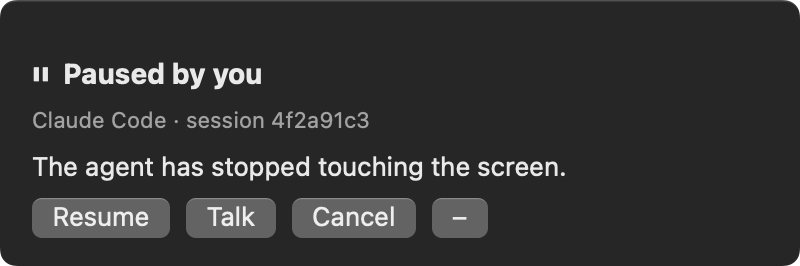
3. Paused: nothing moves until you press Resume
It’s a NSPanel with .nonactivatingPanel, at status-bar level, joined to every Space. That matters: it never steals focus from the app being driven (an alert dialog would, and the agent’s next keystroke would go into the dialog), and it never covers the middle of the screen.
The panel itself is dumb. It speaks a line protocol on stdin/stdout:
stdout:
  GRANT | DENY | STOP | RESUME
  CANCEL | MSG <text> | FOCUS
stdin:
  DOING <text> | PAUSED
  RESUMED | HIDE
A small Node watcher runs it, turns presses into state on disk, and closes it when the lock goes away. While the claim is held it also runs caffeinate, because if the Mac sleeps or locks, every click lands on the lock screen.
The agent’s side is three commands:
# countdown, then the banner
screen-claim start \
  "Turn on Night Shift"
# update the banner
screen-claim doing \
  "Opening Displays"
# release, also on failure
screen-claim stop
Make Pause real: kill, then block
A Pause button that sends the agent a polite message is worthless. By the time the agent reads it, the click already happened. Two things fire when you press Pause:
- Kill what’s in flight. The watcher runs
pkillon peekaboo and cliclick. Apeekaboo typehalfway through a sentence stops mid-word. - Block what’s next. A Claude Code
PreToolUsehook checks every tool call. While the Mac is paused, any command that drives the screen (peekaboo, cliclick, AppleScriptSystem Eventsclicks and keystrokes) is denied before it runs.
The deny reason is the message. It’s what the agent reads instead of a result:
{
  "hookSpecificOutput": {
    "hookEventName":
      "PreToolUse",
    "permissionDecision":
      "deny",
    "permissionDecisionReason":
      "Screen driving is halted
       (pause): blocked
       peekaboo/cliclick. The user
       pressed PAUSE on the screen
       overlay. Stop touching the
       screen; keep your place and
       do not undo anything. Tell
       them what state the screen
       is in, then wait for
       Resume."
  }
}
Pause and Cancel are different buttons. Pause means stop touching it, keep your place, I may hand it back. Cancel means the task is off: release the device and say what state you left it in. Only the human resumes. The agent can’t clear its own pause, so a confused agent can’t talk itself back into driving.
A second hook covers the lock: driving the Mac without holding mac-screen is denied with “you do not hold the screen claim, run screen-claim start first”. So an agent can’t skip the panel either.
Talk: getting a message to a running agent
Talk opens a text box on the banner. Opening it pauses the agent first, because whatever you’re about to type is probably “not that window”.
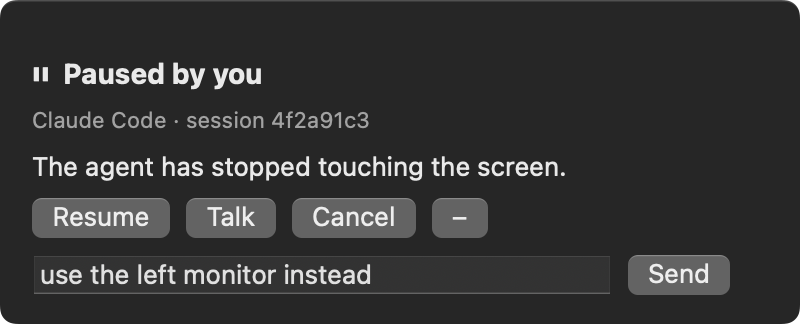
The message goes into an inbox file, and the stop hook appends it to the deny reason. The agent’s next screen action comes back as: blocked, here’s why, and the user says “use the other window”. No polling, no extra channel; the agent gets it the instant it tries to act.
If you want messages to arrive sooner, the watcher can also run a command of yours on every press. I use it to type the message straight into the agent’s terminal tab.
The rules your agent follows on a Mac
Locks and buttons handle agents colliding with each other. These rules handle an agent colliding with itself. Put them in your CLAUDE.md:
- Accessibility first. Press buttons and set fields through the accessibility tree (
tell application "System Events" to tell process "Safari" to click button "Sign In" of window 1). It doesn’t move the cursor or take focus, so you can keep working, and it can’t land in the wrong app. - Prove where keys will land before typing. Typing goes to the focused element of the frontmost app, not the app you named. Pick the window by its real title and size (apps own invisible windows, often listed first). Raise it to the front, confirm it’s frontmost, type a few characters, screenshot, then continue. That’s the rule the game incident wrote.
- Send keys to a process, not to focus. A 50-line Swift tool posts key events straight to one pid with
CGEventPostToPid. The target doesn’t need to be frontmost and the keys can’t go anywhere else. - Click the button, don’t press Return. Plenty of apps don’t bind Return to the default button.
- Screenshot bursts after a submit. An error shake lasts about a second. Capture every 150 ms for 2 s and look across the frames.
- Screenshot the window, never the screen.
screencapture -l <windowid>captures one window whatever is in front of it. A full-screen grab catches whatever else you have open.
Test it
Everything that matters is checkable without a human clicking:
# the lock
$ test/agent-lock.test.sh
ALL PASS
# both hooks
$ test/hooks.test.sh
ALL PASS
# every button
$ test/e2e.test.sh
ALL PASS
The end-to-end test swaps the Swift panel for a shell script that prints GRANT, STOP, MSG, RESUME, CANCEL on a timer. Because the panel only speaks a line protocol, that’s all it takes to test every button.
Where it runs
- The lock is a Node script with no dependencies. Mac locks live in a local state directory; phone, tablet and headset locks live on the device, so any machine that can reach it over adb sees the same lock.
- The Mac panel, watcher and hooks run on the Mac being driven. The hooks run inside Claude Code on that Mac.
- The agents can be anywhere. Mine are split between my laptop and a server, all reaching the phone and headset over Tailscale.
Nothing is cloud-hosted and nothing phones home. If you only have one Mac and one phone on a USB cable, it all runs on the laptop.
The reference code is on GitHub: jrejaud/agent-device-locks. It is small on purpose. Point your agent at this post and it can build its own.
What else I’ve built on it
The same lock and banner pattern runs everything my agents touch: the Quest headset, the to-do list on my smart glasses, my tablet, and logins on shared accounts (two agents signing into the same site at once log each other out). Once you run more than a few agents, every shared thing needs a lock and a visible owner.
Subscribe below to get the next one.